In this article:
Edit user type and permissions
To modify a user (their user type or permissions), go to . Open the menu located to the right of the row of the user you want to modify and choose the Modify option. Make the necessary changes and don't forget to save before leaving.
If this is an external user, follow the steps here.
Permissions by user type
There are three user levels: administrator, user and custom.
| User types | Administrator | User | Custom |
|---|---|---|---|
| User permissions | Access to all the features, including:
| Access to all features (EXCEPT management of users, their authentication methods and API tokens).
| Access only to basic permissions, plus customizable permissions that are granted. You can choose which features the user will have access to. |
Basic permissions
Basic permissions are features that are available to all user types and for which it is not possible to restrict access.
All user types can, among other things:
- Create, edit or delete templates
- Create, edit or delete drafts
- Create, edit or delete groups
- Create, edit or delete forms
- Create, edit, or delete landing pages
- View calendar, statistics and the list of mailings
- Create or edit scenarios under construction
- Create or edit micro surveys
- Add or delete files
Custom permissions
It is possible to choose which features your users have access to with the Custom user type. You need to check which of the permissions below you want them to have access to. If you don't select any permissions, they will only have access to the basic permissions.
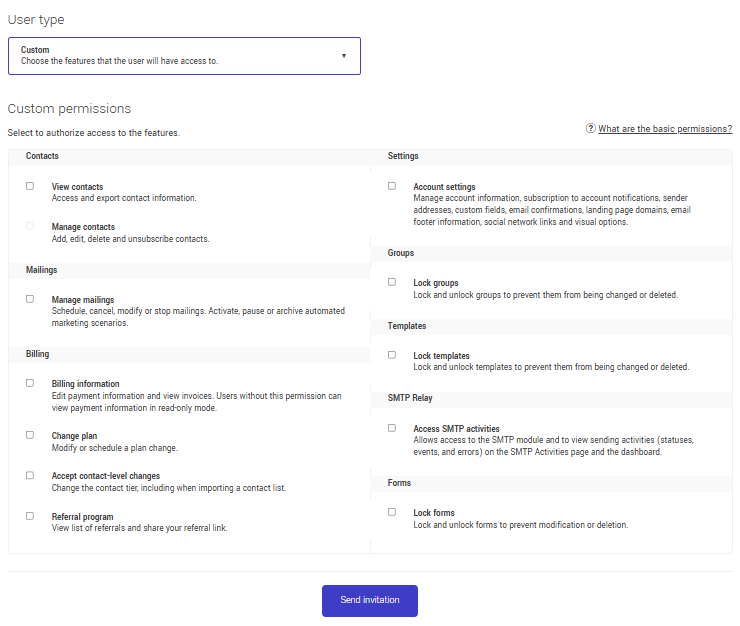
Here is the list of customizable permissions by section:
Contacts
- View contacts (Access and export contact information.)
- Manage contacts (Add, edit, delete and unsubscribe contacts.)
Mailings
- Manage mailings (Schedule, cancel, modify or stop mailings. Activate, pause or archive automated marketing scenarios.)
Billing
- Billing information (Edit payment information and view invoices. Users without this permission can view payment information in read-only mode.)
- Change plan (Modify or schedule a plan change.)
- Accept contact-level changes (Change the contact tier, including when importing a contact list.)
Settings
- Account settings (Manage account information, subscription to account notifications, sender addresses, custom fields, email confirmations, landing page domains, email footer information, social network links and visual options.)
Groups
- Lock groups (Lock and unlock groups to prevent them from being changed or deleted.)
Templates
- Lock templates (Lock and unlock templates to prevent them from being changed or deleted.)
Forms
- Lock forms (Lock and unlock forms to prevent them from being modified, renamed, or deleted.)
See also: